En esta entrada al igual que en la entrada anterior podremos ver otro uso de en esta Dynamics Continuun intetgrator ahora filtrando un reporte de ReportWriter gracias a un parámetro que fue pasado a través de una ventana modificada.
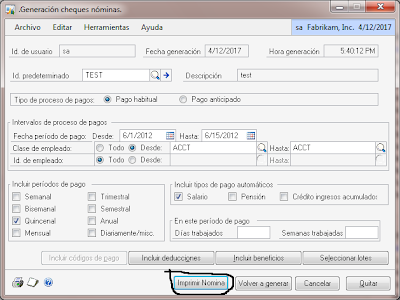
Primero debemos modificar la ventana. en mi caso utiliza un botón que me pida un inputbox para luego filtrar el reporte por el parámetro digitado.
paso 1
modificar la ventana
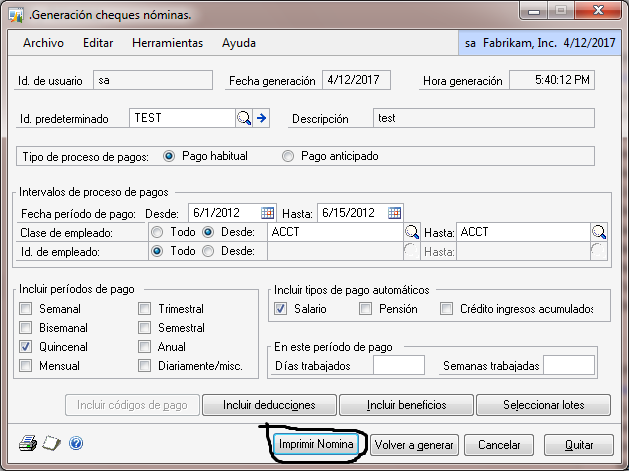
paso 2 agregar el script al botn para permitir filtrar el reporte.
Private Sub ImprimirNomina_BeforeUserChanged(KeepFocus As Boolean, CancelLogic As Boolean)
Dim CompilerApp As Object
Dim CompilerMessage As String
Dim CompilerError As Integer
Dim Commands As String
Set CompilerApp = CreateObject(«Dynamics.Application»)
Dim Class As String
‘Se solicita el parametro para filtrar.
Class = InputBox(«Digitar el Id De Clase del Empleado:», «Digitar Id del Empleado»)
If Class <> «» Then
Commands = «»
‘ Run the report with optional restriction, index and legends
Commands = Commands & » run report with name «»Reporte Monto Nomina Por Departamento»» » & vbCrLf
Commands = Commands & » with restriction ‘Employee Class’ of table UPR_MSTR = «»» & Class & «»»» & vbCrLf
Commands = Commands & » by number 1″ & vbCrLf
Commands = Commands & » in dictionary 0; » & vbCrLf
‘MsgBox Commands
‘ Set Context
CompilerApp.CurrentProductID = 0 ‘ 0 = Dynamics
CompilerApp.CurrentProduct = CompilerApp.CurrentProduct & «!Modified»
‘ Execute SanScript
CompilerError = CompilerApp.ExecuteSanscript(Commands, CompilerMessage)
If CompilerError <> 0 Then
MsgBox CompilerMessage
End If
Else
MsgBox «Favor digitar Una Clase para Generar el Reporte»
End If
End Sub
En este punto se utilizo dynamics contitnuum integrator para filtrar el reporte agregando una restriccion.